
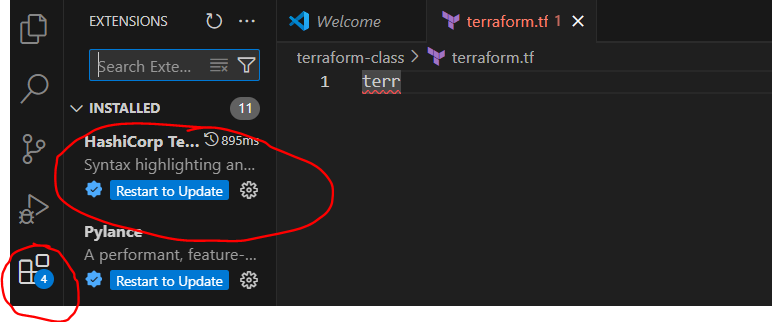
First of all you need to install terraform and Python from the extension of vs-code which help you to write code easily.
There are few steps that you need to follow
Step 1: Create a file with terraform.tf on VS Code

Each Terraform module must declare which providers it requires, so that Terraform can install and use them. Provider requirements are declared in a required_providers block.
A provider requirement consists of a local name, a source location, and a version constraint:
Step 2: Create an file ec2.tr
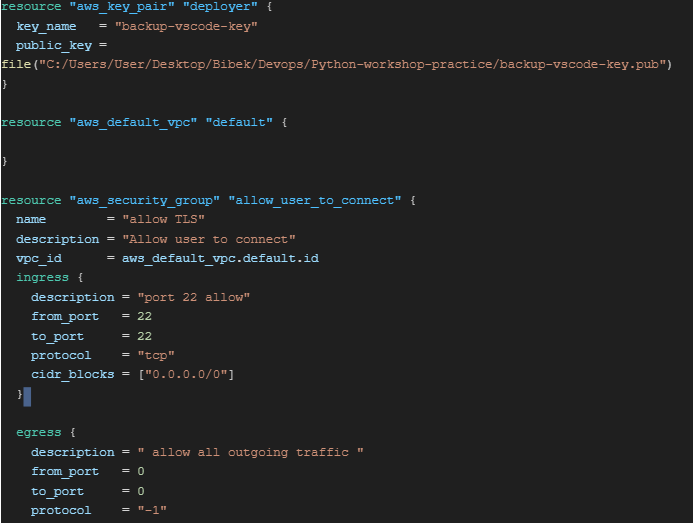
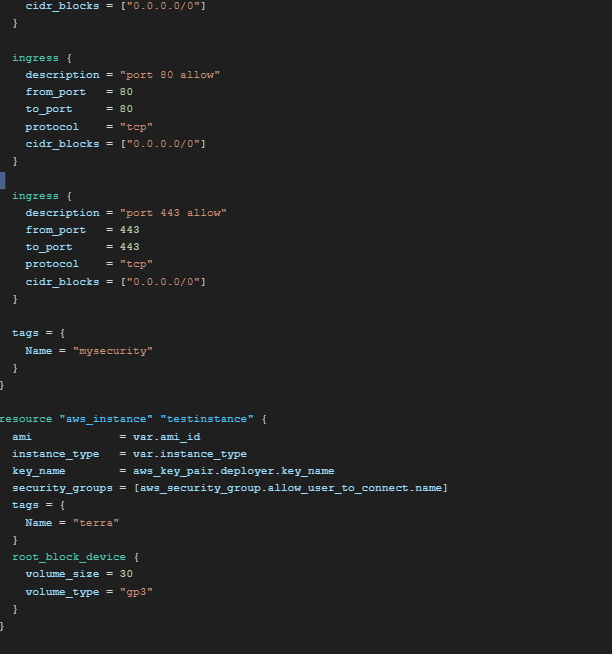
A key pair, consisting of a public key and a private key, is a set of security credentials that you use to prove your identity when connecting to an Amazon EC2 instance.
The given code open the ports and connect public key with the local public key generated.
Step3: Create public_key in the local folder
Here you need to create public_key in your folder by generating public key and need to add the path as given in above picture.

For quick reference of key-pair write go to https://registry.terraform.io/providers/hashicorp/aws/latest/docs/resources/key_pair
https://registry.terraform.io/providers/hashicorp/aws/latest/docs/resources/default_vpc
https://registry.terraform.io/providers/hashicorp/aws/latest/docs/resources/security_group


The given picture shows the key generation locally.

Path of the local keys and the list of files on that directory.

As you can see backup-vscode-key.pub file has been created. Now get that path and paste it on public_key
Step 4: Create file variable.tf
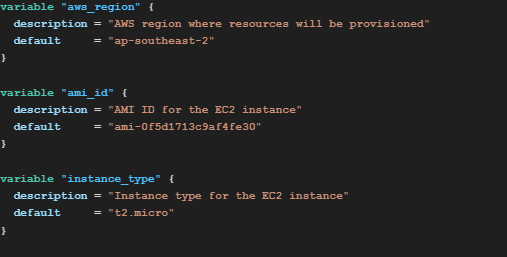
Input variables let you customize aspects of Terraform modules without altering the module’s own source code. This functionality allows you to share modules across different Terraform configurations, making your module composable and reusable.
When you declare variables in the root module of your configuration, you can set their values using CLI options and environment variables. As you can see in the images, i am using in Sydney region and default EC2 instance i am using is Ubuntu of sydeny area and t2.micro as a processor.
Step 5: Create file terra.py
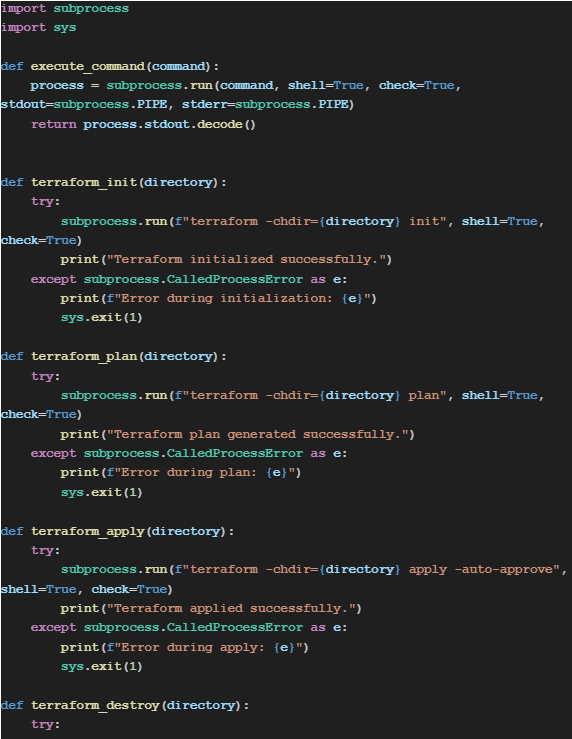
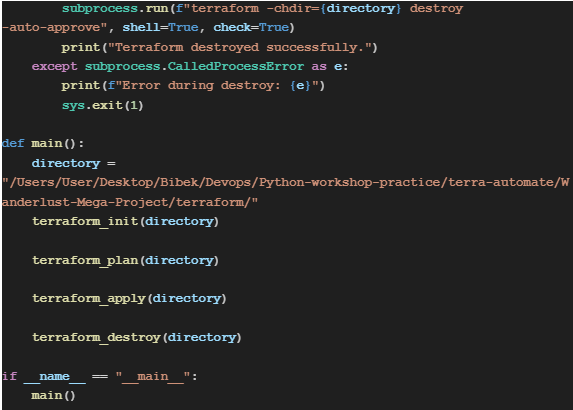
This code will make automate execute the command of terraform like of terraform init, terraform_plan, terraform_apply and terraform_destroy
Step 6: Terraform in local-vscode: check AWS is configured ?
Go to terminal and write aws configure
AWS CLI need to be installed before using aws configure. AWS CLI enables interacting with AWS services via terminal commands, managing resources, installing version 2 bundled installer, checking installed version. The code is msiexec.exe /i https://awscli.amazonaws.com/AWSCLIV2.msi
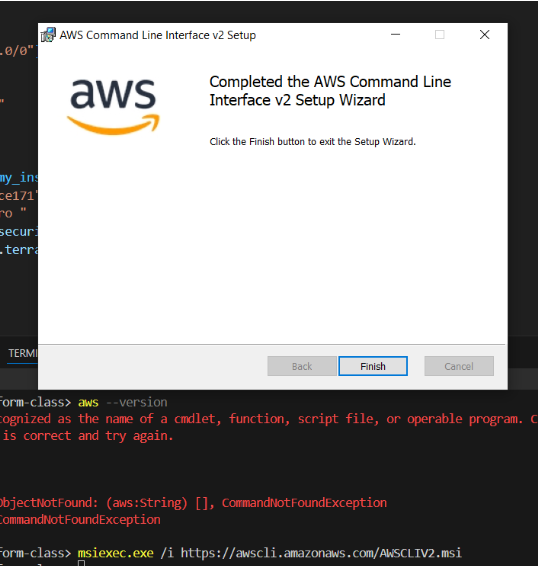
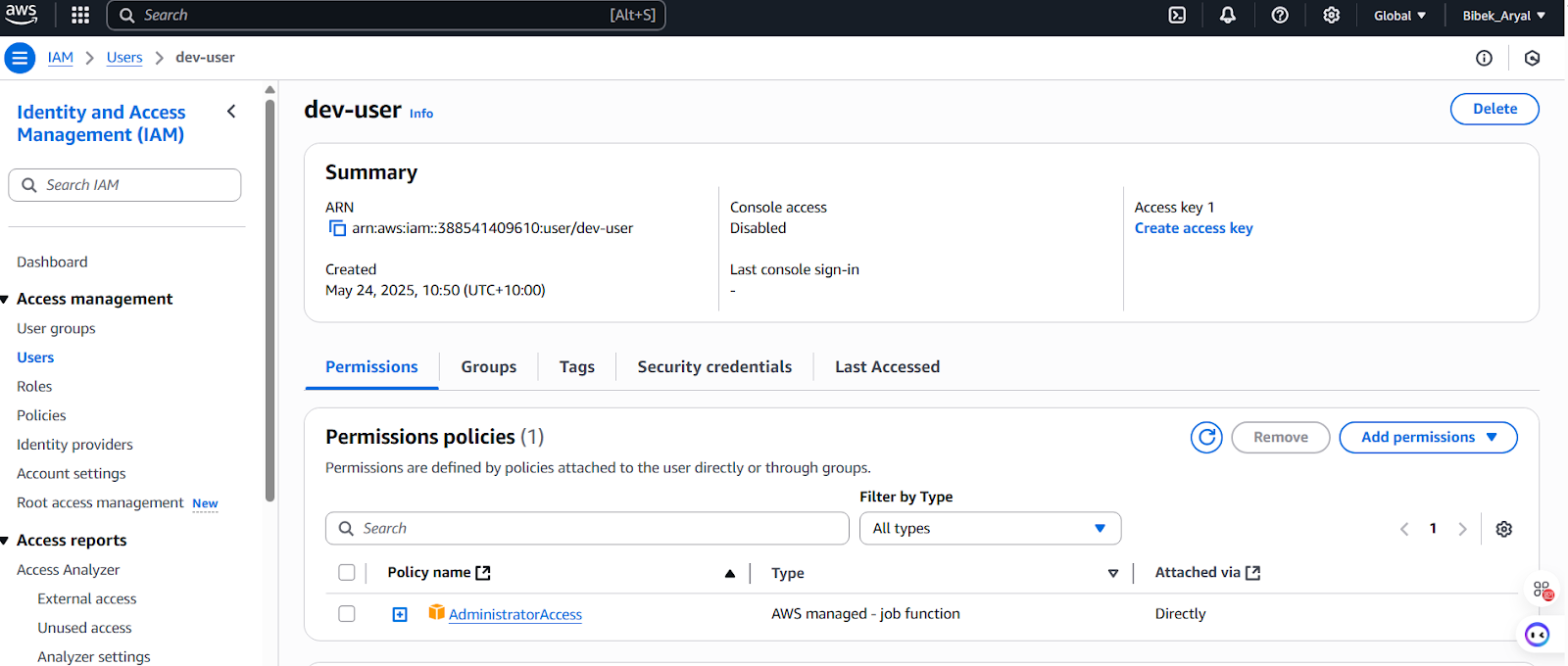
To access AWS services with the AWS CLI, you need at minimum an AWS account and IAM credentials. To increase the security of your AWS account, we recommend that you do not use your root account credentials. You should create a user with least privilege to provide access credentials to the tasks you’ll be running in AWS.
To configure you need to create one IAM user and provide administrative access to him
https://docs.aws.amazon.com/cli/latest/userguide/getting-started-install.html

go to security credential and create access key and paste it on vs-code local terraform terminal


This how you can configure AWS CLI in VS-Code AWS and copy access key from IAM account and paste it to your local terminal to interlink aws.
Step 7: Check s3 files of AWS

The command aws s3 ls is used to list all the Amazon S3 buckets in your AWS account, or to list the contents of a specific bucket if a bucket name is provided.

As you can see in the picture that yesbibek-bucket has been listed in AWS where we are going to upload our backup file.
Step 8: Now execute the python terra.py

python terra.py is to execute the python file which helps to create ec2 instance without using aws account.


Finally, You can see in the system that its running new ec2 instance
