
In the fast-paced world of DevOps, scripting plays a crucial role in automating processes, managing infrastructure, and enhancing collaboration between development and operations teams. As a DevOps engineer, mastering scripting tasks not only improves efficiency but also ensures smoother deployments, better configuration management, and effective monitoring of systems.
1. Monitor Disk Usage and if Over 80%

Explanation
- Set the Threshold: The script defines a threshold for disk usage (80%).
- Check Disk Usage: It retrieves the current disk usage of the root filesystem using the
dfcommand, processes the output to get the percentage value. - Alert Condition: If the usage exceeds the threshold, it sends an alert via email.
Usage Instructions
- Save the script to a file, e.g.,
monitor_disk_usage.sh - Make it executable:

2. Clean /tmp Directory Older Than 7 Days
This is the Bash script that cleans up the /tmp directory by removing files that are older than 7 days. This is a common maintenance task in DevOps to ensure that temporary files do not consume unnecessary disk space.

Explanation
- Define the Directory: The script sets the variable
TMP_DIRto point to the/tmpdirectory. - Find Command: It uses the
findcommand to search for files (-type f) in the specified directory that were last modified more than 7 days ago (-mtime +7). - Remove Files: The
-exec rm -f {}part executes thermcommand to forcefully remove each file found. - Logging: Optionally, it logs the cleanup activity to a log file (
/var/log/tmp_cleanup.log), including a timestamp.
Usage Instructions
- Save the script to a file, e.g.,
clean_tmp.sh. - Make it executable:

3. Monitor Web Service and Alert on Failure
To monitor a web service and send an alert if it fails, you can use a Bash script that checks the HTTP status code of the service. If the service is down (e.g., returns a 4xx or 5xx status code), the script will send an alert via email.

Explanation
- Define the URL: The script sets the variable
URLto the web service you want to monitor. - Check HTTP Status: It uses
curlto send a request to the URL and capture the HTTP status code. The-o /dev/nulloption discards the response body,-ssilences the progress meter, and-w "%{http_code}\n"outputs only the HTTP status code. - Alert Condition: If the HTTP status code is not 200 (indicating success), it sends an alert via email.
Usage Instructions
- Save the script to a file, e.g.,
monitor_web_service.sh. - Make it executable:

4. Rotate Logs and Keep Last 5
To rotate logs and keep the last 5 log files, you can use a Bash script that moves the current log file to a new name and deletes the oldest log files if there are more than 5. Below is an example script that demonstrates how to perform this task.

Explanation
- Define Variables: The script sets the
LOG_FILEandLOG_DIRvariables to specify the log file’s path and directory. It also setsMAX_LOG_FILESto define how many log files to keep. - Check for Existing Log File: It checks if the log file exists.
- Rotate Logs: If the log file exists, it renames the current log file by appending a timestamp to its name.
- Create a New Log File: It then creates a new empty log file.
- Remove Old Log Files: The script changes to the log directory and uses
ls,grep, andxargsto remove old log files if there are more than 5. - Logging Activity: Optionally, it logs the rotation activity to a separate log file.
Usage Instructions
- Save the script to a file, e.g.,
rotate_logs.sh. - Make it executable:

5. Backup MySQL DB Daily With Timestamp
To perform a daily backup of a MySQL database with a timestamp, you can use a Bash script that utilizes the mysqldump command. This script will create a backup of the specified database and append a timestamp to the backup file name.

Explanation
- MySQL Credentials: Set the variables
USER,PASSWORD, andDATABASEwith your MySQL username, password, and the name of the database you want to back up. - Backup Directory: Specify the directory where you want to store the backup files in the
BACKUP_DIRvariable. - Create Timestamp: The script generates a timestamp in the format
YYYYMMDD_HHMMSS. - Backup File Name: It constructs the backup file name using the database name and the timestamp.
- Perform Backup: The
mysqldumpcommand is executed to create the backup. The output is redirected to the backup file. - Check Success: The script checks if the backup command was successful and prints a message accordingly.
Usage Instructions
- Save the script to a file, e.g.,
backup_mysql.sh. - Make it executable:

6. Validate IPs in a Text File
To validate IP addresses in a text file, you can use a Bash script that reads each line of the file and checks whether it matches the format of a valid IPv4 address. Below is an example script that performs this task.

Explanation
- Input File: Set the
INPUT_FILEvariable to the path of the text file containing the IP addresses you want to validate. - Validation Function: The
validate_ipfunction checks if the input string matches the regex pattern for an IPv4 address. It also splits the IP address into its octets and checks if each octet is between 0 and 255. - Read and Validate: The script reads each line from the input file and calls the
validate_ipfunction to validate the IP address.
Usage Instructions
- Save the script to a file, e.g.,
validate_ips.sh. - Make it executable:

7. Ping Servers from a File
To ping servers listed in a text file, you can use a Bash script that reads each server address from the file and pings it. The script will report the result of each ping attempt. Below is an example of how to do this.

Explanation
- Input File: Set the
INPUT_FILEvariable to the path of the text file containing the server addresses you want to ping. - Ping Function: The
ping_serverfunction uses thepingcommand to send a single ICMP echo request (-c 1) to the server. It suppresses output (&> /dev/null) and checks the return status to determine if the server is reachable. - File Existence Check: Before proceeding, the script checks if the input file exists. If not, it prints an error message and exits.
- Read and Ping: The script reads each line from the input file and calls the
ping_serverfunction for each server address. - Save the script to a file, e.g.,
ping_servers.sh.
Usage Instructions
- Save the script to a file, e.g.,
ping_servers.sh. - Make it executable:

8. Email Top CPU-consuming Processes
To email the top CPU-consuming processes on a Linux system, you can use a Bash script that utilizes the ps command to fetch the process information and then sends an email with the results. Below is a sample script that accomplishes this.

Explanation
- Email Settings: Set the
TO_EMAILvariable to the recipient’s email address and define theSUBJECTfor the email. - Temporary File: The script creates a temporary file (
TEMP_FILE) to store the output of the top CPU-consuming processes. - Fetch Processes: The
pscommand retrieves the process ID (pid), command name (comm), and CPU usage percentage (%cpu), sorted by CPU usage in descending order. The output is redirected to the temporary file. - Send Email: The script uses the
mailcommand to send the email with the content of the temporary file. - Cleanup: The temporary file is deleted after the email is sent to avoid clutter.
- Confirmation Message: A message is printed to confirm that the email has been sent.
Usage Instructions
- Save the script to a file, e.g.,
email_top_cpu_processes.sh. - Make it executable:

9. SSH into Multiple Servers and Execute Commands
To SSH into multiple servers and execute commands, you can create a Bash script that iterates through a list of server addresses. The script will use SSH to connect to each server and execute the specified command. Below is an example of how to do this.

Explanation
- Servers List: Set the
SERVERSvariable to the path of the text file containing the list of server addresses (one per line). - Command to Execute: Define the command you want to execute on each server in the
COMMANDvariable. In this example, the command isuptime, which shows how long the system has been running. - File Existence Check: Before proceeding, the script checks if the input file exists. If not, it prints an error message and exits.
- Loop Through Servers: The script reads each line from the input file and attempts to SSH into each server.
- Execute Command: The specified command is executed on the remote server. If the SSH command fails, an error message is printed.
Usage Instructions
- Save the script to a file, e.g.,
ssh_execute_commands.sh. - Make it executable:

10. Archive Application Logs to S3
To archive application logs to Amazon S3, you can create a Bash script that compresses the log files and uploads them to an S3 bucket. Below is an example script that demonstrates how to do this using the AWS CLI.
Prerequisites
- AWS CLI Installed: Ensure you have the AWS CLI installed on your machine. You can install it using:bashCopy
pip install awscli - AWS Credentials Configured: Make sure your AWS credentials are configured. You can set them up using:bashCopy
aws configure - S3 Bucket: Ensure you have an S3 bucket created where you want to store the logs.

Explanation
- Variables:
LOG_DIR: Set this to the directory containing your application logs.S3_BUCKET: Specify the S3 bucket path where the logs will be stored.TIMESTAMP: Generates a timestamp for naming the archive file.ARCHIVE_FILE: The name of the compressed archive file.
- Compress the Log Files: The script uses
tarto compress the log files in the specified directory into a.tar.gzarchive. - Upload to S3: The script uses the
aws s3 cpcommand to upload the archive file to the specified S3 bucket. - Check Upload Status: It checks if the upload was successful and prints a corresponding message.
- Clean Up: The local archive file is removed after the upload to save space.
Usage Instructions
- Save the script to a file, e.g.,
archive_logs_to_s3.sh. - Make it executable:

11. Restart Service if Down
To automatically restart a service if it is down, you can create a Bash script that checks the status of the service and restarts it if necessary. Below is an example script that demonstrates how to do this.

Explanation
- Variables:
SERVICE_NAME: Set this variable to the name of the service you want to monitor and restart.
- Check Service Status: The script uses
systemctl is-active --quietto check if the service is currently running. If the service is active, it prints a message indicating that the service is running. - Restart Service: If the service is not running, it attempts to restart the service using
systemctl restart. - Check Restart Status: After attempting to restart the service, the script checks again if the service is now active and prints a corresponding success or failure message.
Usage Instructions
- Save the script to a file, e.g.,
restart_service_if_down.sh. - Make it executable

12. Tail Multiple Logs in Parallel
To tail multiple log files in parallel, you can use a Bash script that utilizes the tail command along with & to run each tail command in the background. This approach allows you to monitor multiple log files simultaneously. Below is an example script that demonstrates how to do this.

Explanation
- Log Files Array: The
LOG_FILESarray contains the paths to the log files you want to tail. You can add or remove log file paths as needed. - Function to Tail Logs: The
tail_logfunction takes a log file path as an argument and uses thetail -fcommand to continuously monitor the file for new entries. - Loop Through Log Files: The script loops through each log file in the
LOG_FILESarray and calls thetail_logfunction in the background using&. - Wait for Background Jobs: The
waitcommand is used to pause the script until all backgroundtailprocesses are finished.
Usage Instructions
- Save the script to a file, e.g.,
tail_multiple_logs.sh. - Make it executable:bash

13. Monitor SSL Certificate Expiry
Monitoring SSL certificate expiry is crucial for maintaining secure connections to your web servers. You can create a Bash script that checks the expiry date of SSL certificates and alerts you if they are about to expire. Below is an example script that demonstrates how to do this.

Explanation
- Variables:
DOMAINS: An array that contains the domain names for which you want to check the SSL certificate expiry.DAYS_THRESHOLD: The number of days before expiration to trigger an alert.
- Function to Check SSL Expiry:
- The
check_ssl_expiryfunction usesopensslto retrieve the SSL certificate’s expiry date. - It converts the expiry date to epoch time and calculates the number of days left until expiration.
- If the number of days left is less than or equal to the threshold, it prints an alert message.
- The
- Loop Through Domains: The script iterates through each domain in the
DOMAINSarray and calls thecheck_ssl_expiryfunction.
Usage Instructions
- Save the script to a file, e.g.,
monitor_ssl_expiry.sh. - Make it executable:

14. Count Failed Logins in Log File
To count failed login attempts in a log file, you can create a Bash script that searches for specific patterns indicating failed logins. Below is an example script that demonstrates how to do this.

Explanation
- Variables:
LOG_FILE: Set this variable to the path of the log file you want to analyze.FAILED_LOGIN_PATTERN: This is the pattern used to identify failed login attempts. The example uses “Failed password,” which is common in many log files (e.g.,/var/log/auth.logfor SSH). Adjust this pattern based on your specific log format.
- Count Failed Logins: The script uses the
grep -ccommand to count the occurrences of the specified pattern in the log file. - Output the Result: It prints the total number of failed login attempts found in the log file.
Usage Instructions
- Save the script to a file, e.g.,
count_failed_logins.sh. - Make it executable:

15. Report Users with UID > 1000
To report users with a User ID (UID) greater than 1000 on a Unix-like system, you can create a Bash script that parses the /etc/passwd file, which contains user account information. Below is an example script that accomplishes this.
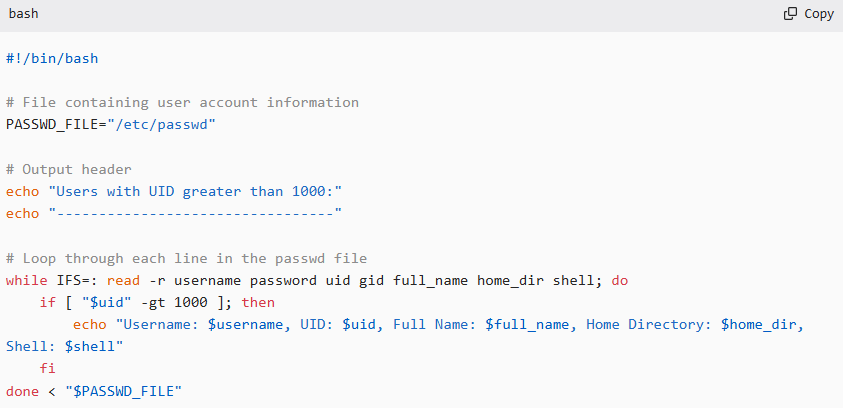
Explanation
- Variables:
PASSWD_FILE: This variable points to the/etc/passwdfile, which contains user account details.
- Output Header: The script prints a header to indicate the start of the report.
- Loop Through the
/etc/passwdFile:- The
whileloop reads each line of the/etc/passwdfile, splitting the line into fields usingIFS=:. - The fields read are:
username: The user’s login name.password: The user’s password (usually represented asxfor shadow passwords).uid: The user’s UID.gid: The user’s GID.full_name: The user’s full name (or comment field).home_dir: The user’s home directory.shell: The user’s default shell.
- The script checks if the UID is greater than 1000. If true, it prints the user’s information.
- The
Usage Instructions
- Save the script to a file, e.g.,
report_users_uid.sh. - Make it executable:

16. Find and Kill Zombie Processes
Zombie processes are processes that have completed execution but still have an entry in the process table. They occur when the parent process has not yet read the exit status of the terminated child process. To find and kill zombie processes, you can create a Bash script that identifies them and then cleans them up. However, it’s important to note that you cannot “kill” a zombie process directly; instead, you need to terminate its parent process.

Explanation
- Finding Zombie Processes:
- The script uses
ps auxto list all processes andawkto filter out processes with a status of “Z” (indicating they are zombies). - It stores the PIDs of the zombie processes in the
zombiesvariable.
- The script uses
- Checking for Zombies:
- If no zombie processes are found, it prints a message and exits the function.
- Killing Parent Processes:
- For each zombie process, it retrieves the parent process ID (PPID) using
ps -o ppid= -p "$pid". - It then kills the parent process using
kill -9 "$ppid"to remove the zombie process from the process table.
- For each zombie process, it retrieves the parent process ID (PPID) using
- Output Messages:
- The script prints messages indicating the discovery of zombie processes and the actions taken to kill their parent processes.
Usage Instructions
- Save the script to a file, e.g.,
find_kill_zombies.sh. - Make it executable:

Example Output
When you run the script, you may see output similar to this:

17. Compare Two Directories

18. Monitor Network Bandwidth in Real-Time

19. Create Users from CSV

20. Alert if Docker Container Not Running

21. Auto-Deploy Static Site Using rsync

22. Git Pull + Restart Service

23. Generate Ansible Dynamic Inventory

24. Validate YAML and JSON Files

25. Parse Jenkins Job Status via API
